The same events and reminders read differently depending on the timeframe. Plandy offers day, week, and month views so you can pick whatever fits the moment.
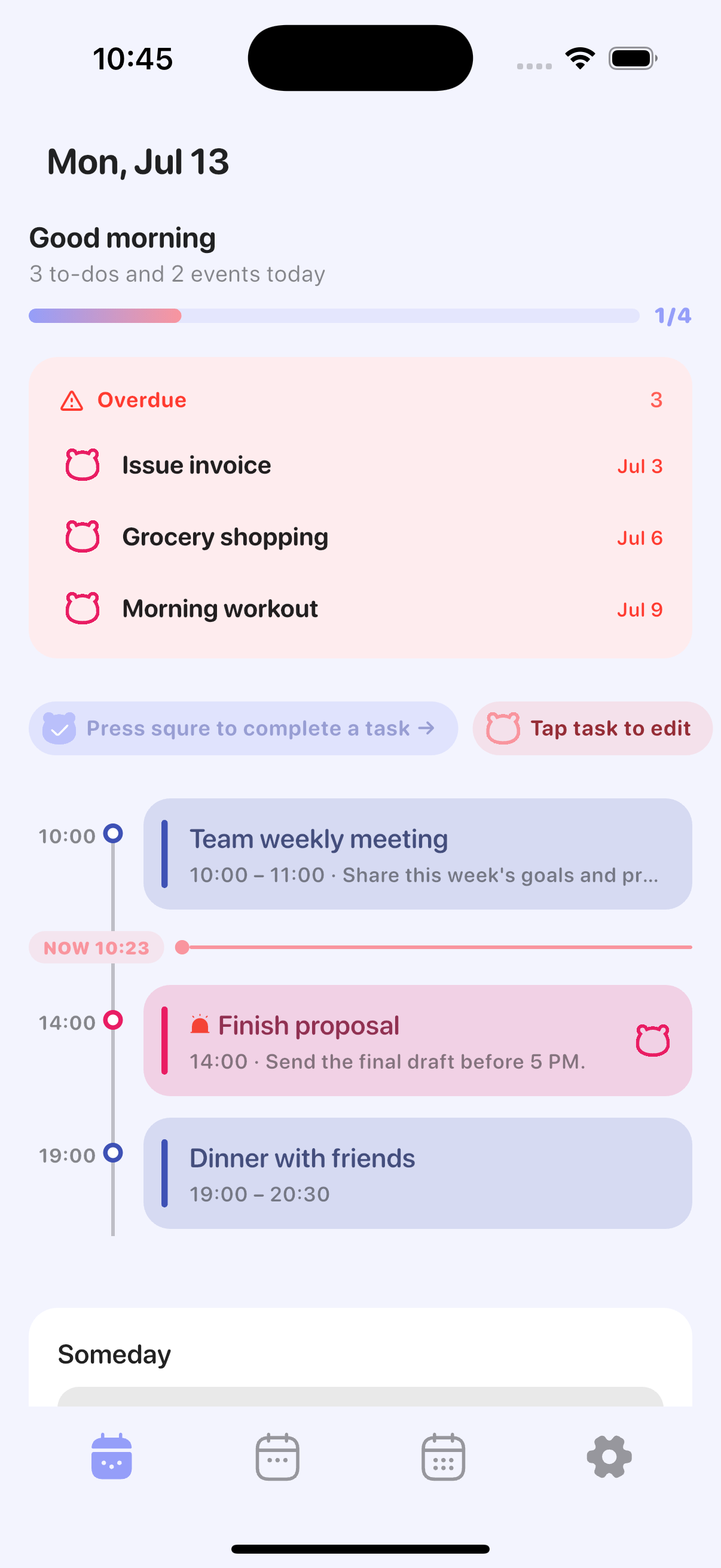
Switch between Day, Week, and Month
Tap the day, week, or month tab at the bottom of the screen. Use Day for today's tasks, Week for the flow of the week, and Month to see how everything is spread out.
Set your launch screen
If there's a view you want to see first when you open the app, choose it under Settings > Launch screen (day, week, or month).
Hide the Week tab
If you don't use all three, turn off Settings > Weekly tab to keep the bottom tabs simple.
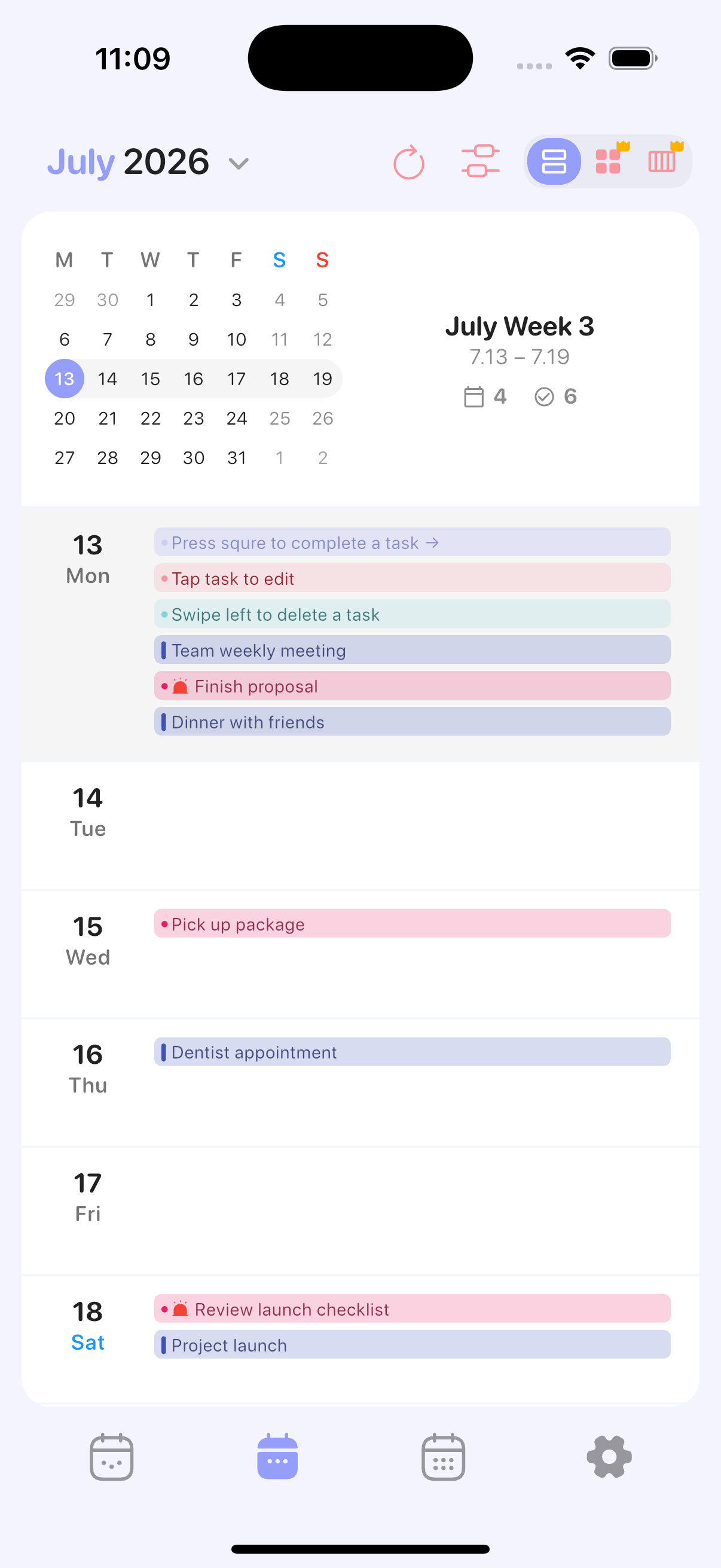
Change the weekly view mode (List, Grid, Day)
The Week view comes in three layouts. Switch instantly with the mode button at the top of the Week screen, or set the default under Settings > Default weekly view.
- List: shows events and reminders top to bottom by day. (Free)
- Grid: lays out the whole week as a two-column grid at a glance. (Pro)
- Day: places events on a time-of-day timeline to see how the day flows. (Pro)
Grid and Day are Pro features. Tapping them on the free plan shows a preview along with a Pro prompt.
Change lunar dates, week numbers, and the first day of the week
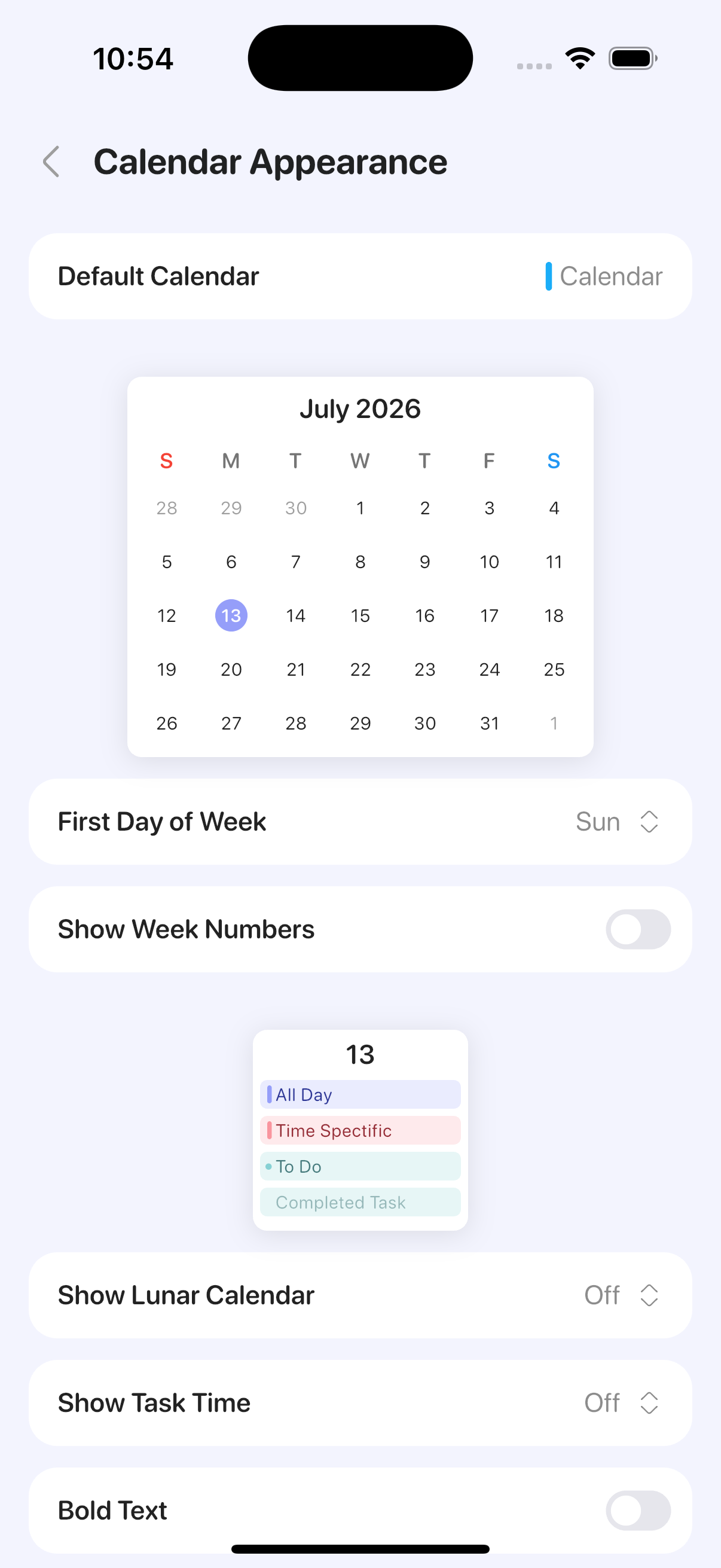
Adjust view options under Settings > Calendar settings.
- Set lunar display to Off, Korea, or China.
- Turn on week numbers to show the week of the year.
- Use first day of the week to change which day the week starts on.
To change colors, fonts, and how items appear, see the "Display and Themes" guide.