Display and Themes — Dark Mode, Color, Font, and Language
How to change dark mode, color theme, font, and language in Plandy, and adjust how calendars and reminders appear.
The more often you open an app, the more a comfortable screen matters. In Settings you can adjust color, display, font, and language to your taste.
Turn on dark mode
Use the Dark mode switch at the top of the Settings screen to turn it on or off.
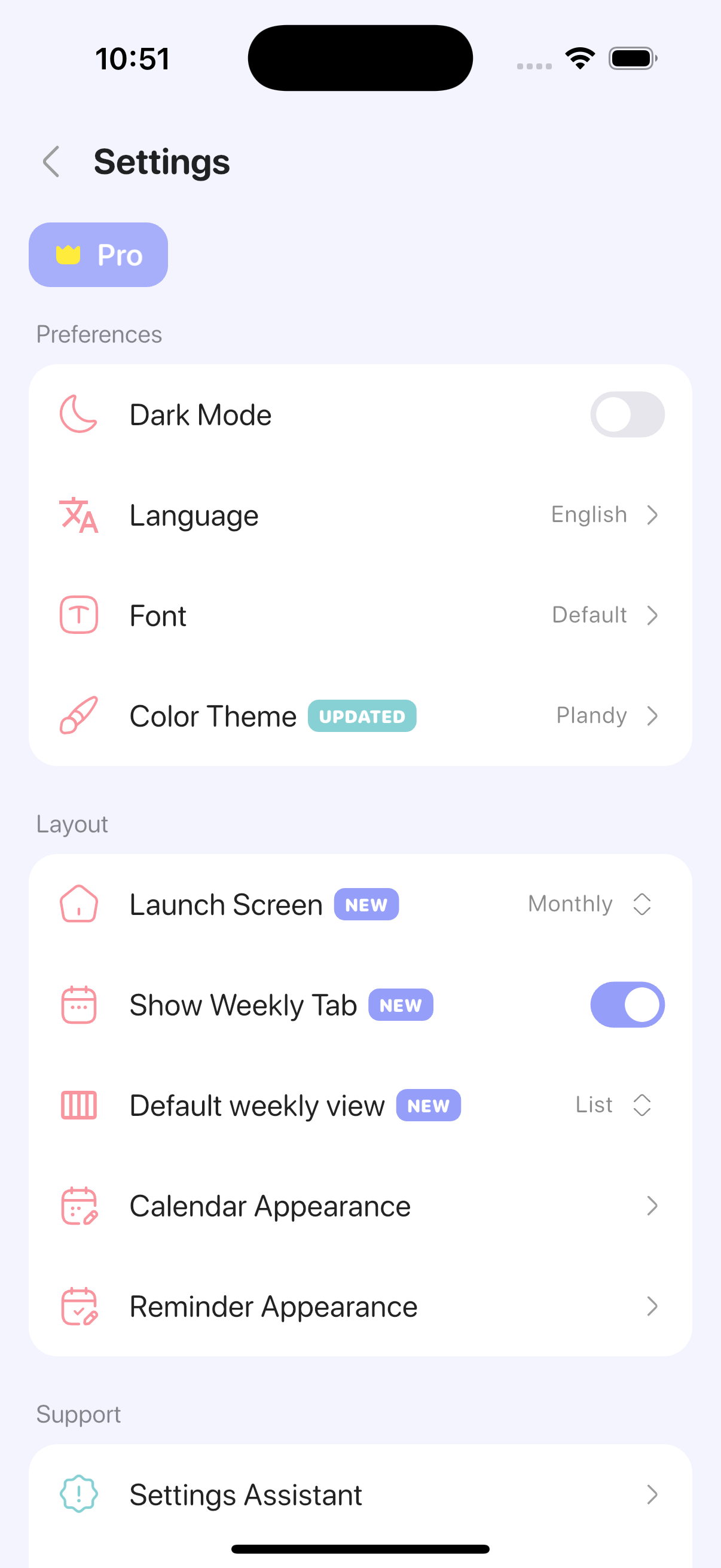
Pick a color theme (including monochrome)
Under Settings > Color theme, change the overall feel of the app. There's also a pared-back monochrome theme, which keeps things clean when you want to focus on what's scheduled.
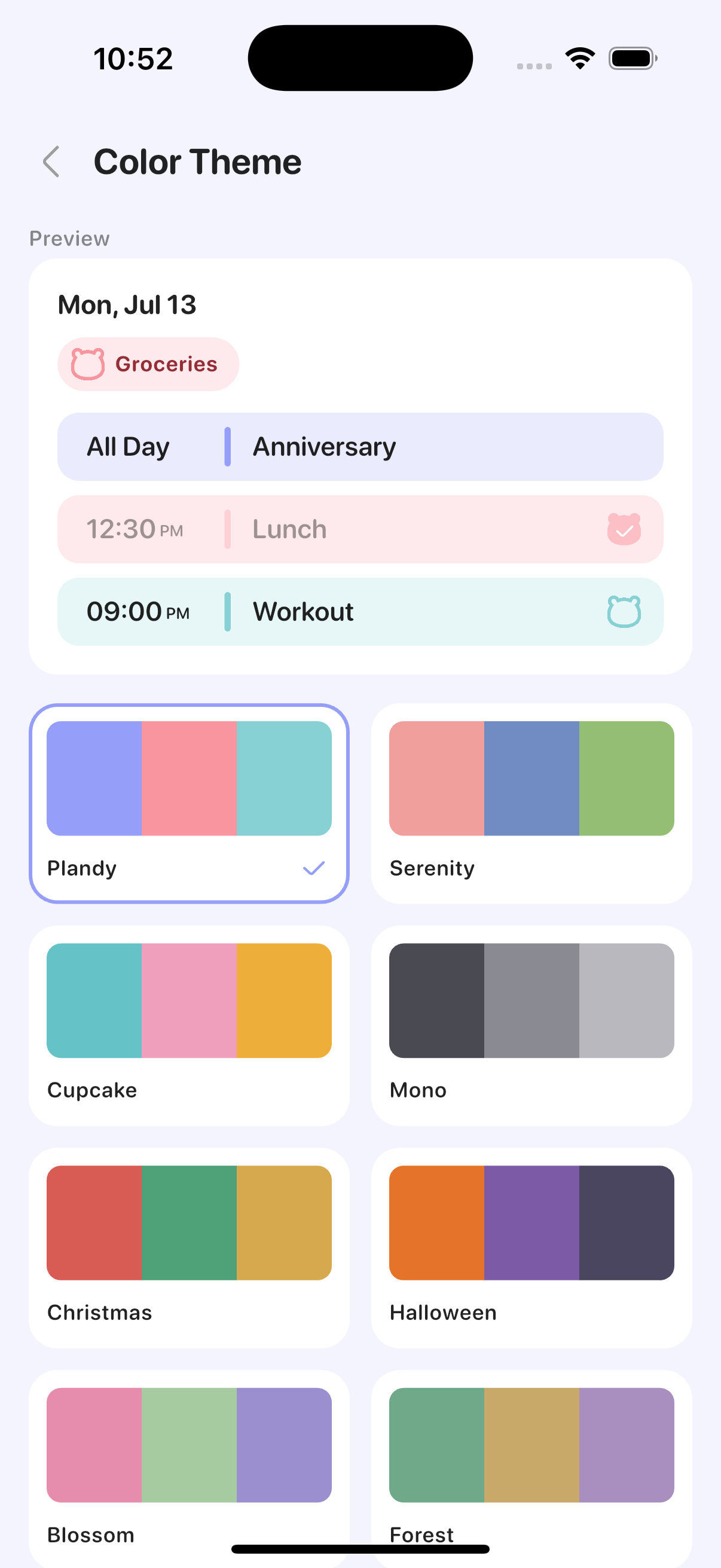
Change the font
Choose an easier-to-read font under Settings > Font.
Change the language
Choose the app's language under Settings > Language.
Adjust how calendars and reminders appear
- Under Settings > Calendar settings, adjust how calendars look — time display, bold text, lunar dates, week numbers, and more.
- Under Settings > Reminder settings, set how completed reminders appear (hidden, translucent, strikethrough, etc.) and the default reminder list.
- Past Events (Pro): choose how events that have already ended appear — Show, Translucent, or Hide. The value set under Calendar settings applies to calendar views, the value under Reminder settings applies to list views, and widgets follow the same setting. A timed event becomes past once its end time passes; an all-day event, once its last day is over. Reminders aren't affected, and on the free plan this stays on Show.
For switching day/week/month and setting the launch screen, see the "Views" guide.
Reminders and Calendar, on one screenTry Plandy free on the App Store