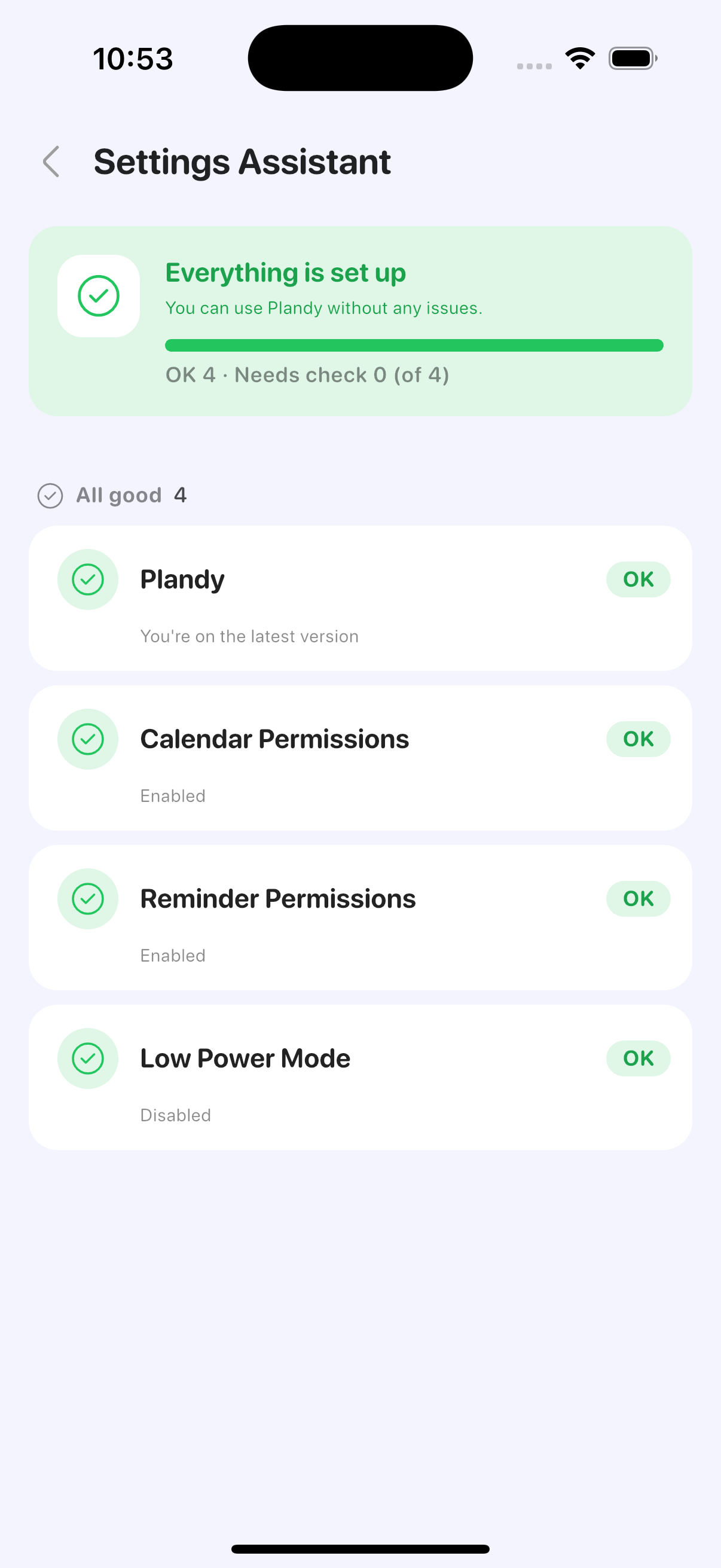
When events don't show up or alerts don't fire, it's not always obvious where to look. The Settings Assistant gathers the things Plandy needs to work properly into one screen and checks them for you. Open it from Settings > Settings Assistant.
Check access permissions
Confirm that Calendar and Reminders access are turned on. If a permission is off, your events or reminders won't appear — the assistant lets you jump straight to your iPhone's Settings to turn it back on.
Check Low Power Mode
In Low Power Mode, background refresh is limited, so alerts can be delayed and syncing can lag. If notifications or syncing aren't smooth, check this first.
Check the app version
If a newer version is available, the assistant shows it. Tap the item to open the App Store and update.
If alerts aren't arriving, see the "When Alerts Don't Arrive" guide; if data isn't showing or won't sync, see the "Sync and Backup" guide.