Reminders are for to-dos with a deadline. Reminders are free to use, and the ones you add in Plandy sync directly with Apple's Reminders app.
Add a reminder
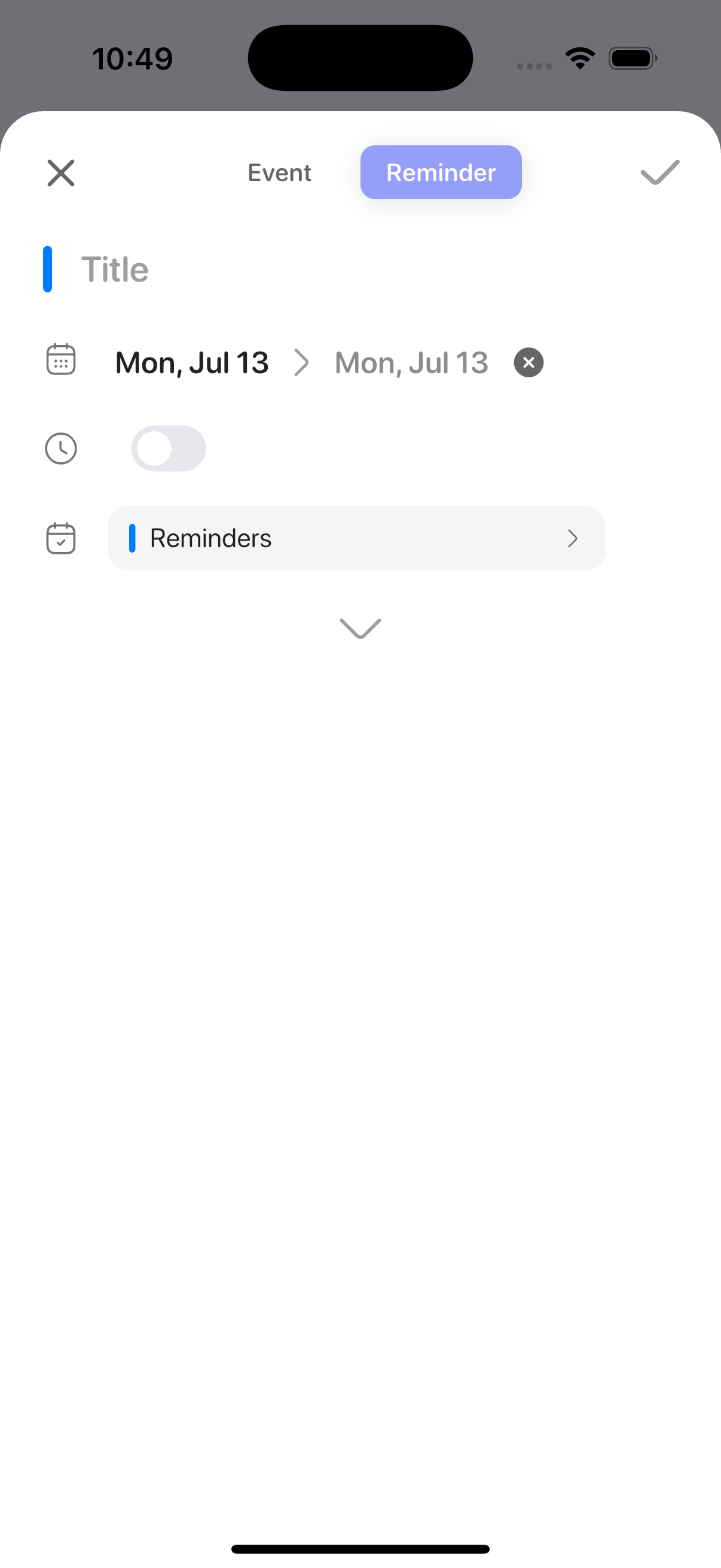
- On the day, week, or month screen, tap the New task (+) row to open the add sheet.
- In the toggle at the top center, choose Reminder on the right. (The toggle shows
Event/Reminder.) - Enter a title.
- The date is optional. Tap the date icon to turn it on for a reminder on that day; to set a time too, turn off All Day and pick a time. You can also leave it with no date.
- Tap List to choose which list the reminder goes in.
- Tap the check (✓) at the top right to save.
Add a priority and notes
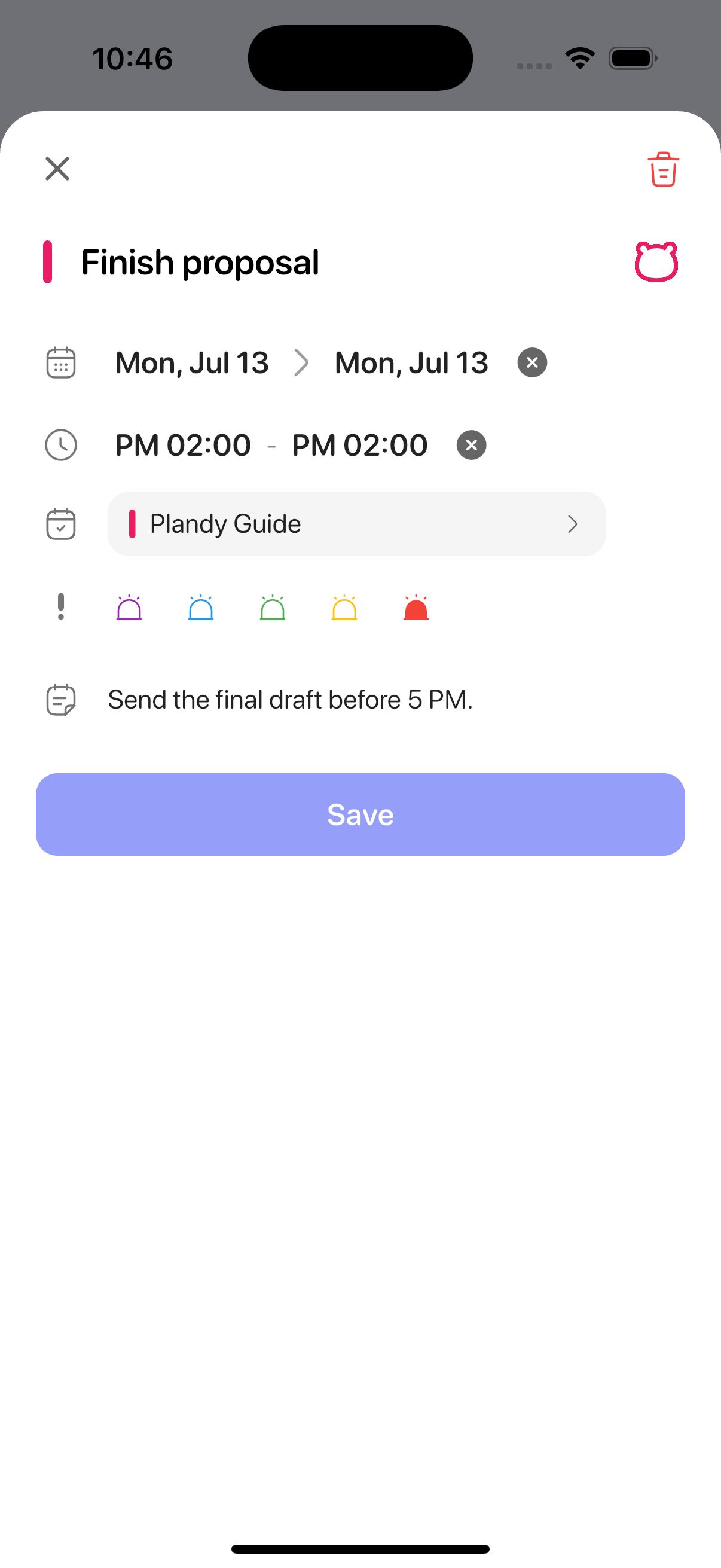
Tap the down arrow (⌄) near the bottom of the add sheet to reveal priority and notes.
- Set the priority with the color-coded level icons in the expanded panel.
- Use Memo for details.
Organize with lists
Split items into lists like Work, Personal, or Groceries — they stay in sync with the lists in Apple Reminders. To set a default list, go to Settings > Reminder settings > Default reminder list.
Edit or delete a reminder
- Tap a reminder you created to open its detail view.
- You can change the title, date, time, priority, list, and notes.
- To delete it, tap the trash icon at the top right.
Everything you change is reflected in Apple's own Reminders app too.
Mark as complete
Tap the circle to the left of a reminder to mark it complete. You can choose how completed reminders appear under Settings > Reminder settings > Show completed reminders — hidden, translucent, or with a strikethrough.
Add faster, or get alerted by place
- Type the date and time in the title, like "tomorrow 3pm", and they're filled in for you. See the "Quick Add" guide.
- To get alerted based on a place — like when you arrive at the store — see the "Location Reminders" guide. (Pro)
To add a timed appointment (a calendar event), see the "Calendar Events" guide. (Adding and editing calendar events is a Pro feature; reminders are free.)