Choosing Which Calendars and Lists to Show
How to keep only the calendars and reminder lists you want turned on in Plandy, and set a default calendar and list.
When you have a lot of calendars and reminder lists, the screen gets busy. Keeping only the ones you check often makes your day, week, and month views much tidier.
Choose which calendars to show
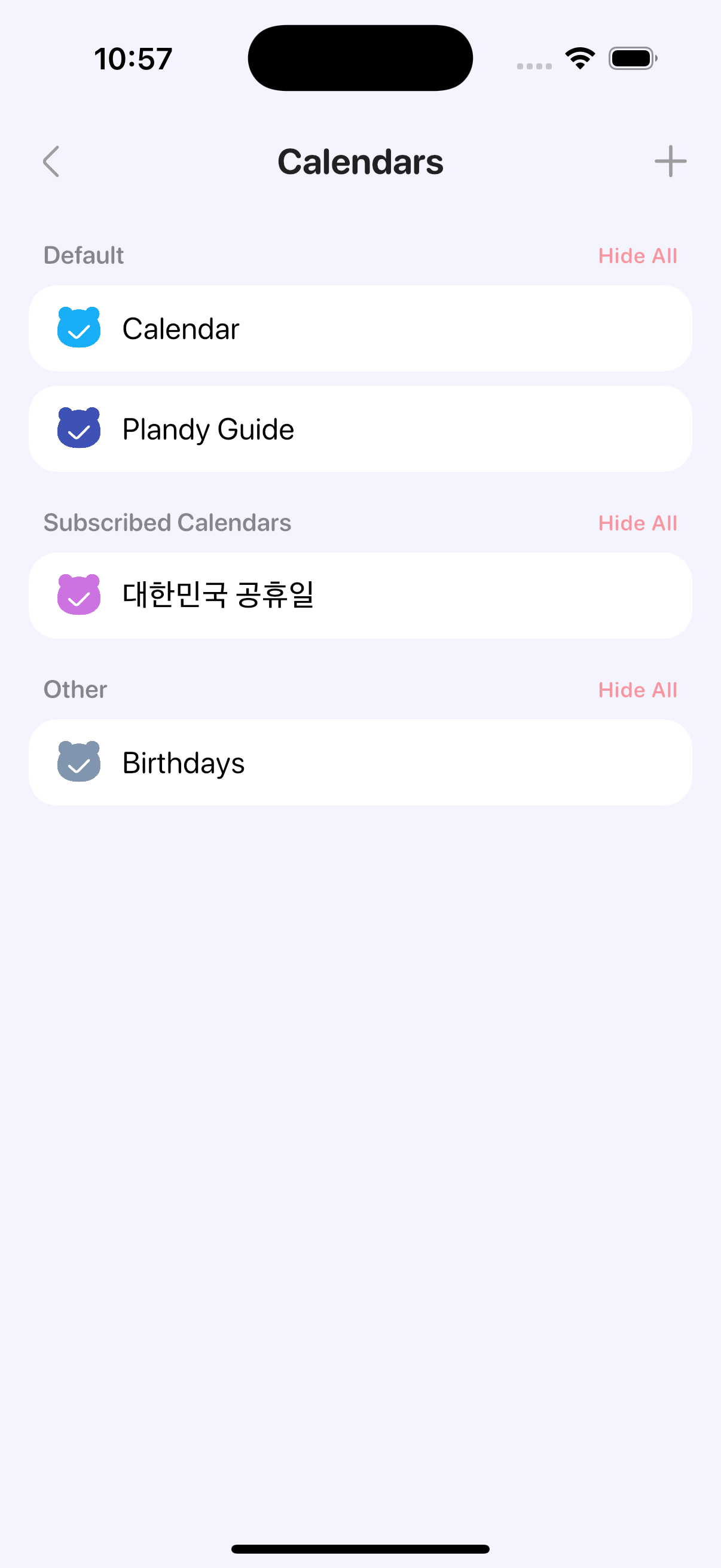
- Open the calendars screen (your list of calendars).
- Tap a calendar to show or hide it. Hide the ones you're not using right now.
- Use Show all / Hide all at the top to toggle them all at once.
Choose which reminder lists to show
On the reminder lists screen, tap each list the same way to show or hide it.
Set a default calendar and list
If there's a place you add new items to often, set it as the default so you don't have to pick every time.
- Settings > Calendar settings > Default calendar
- Settings > Reminder settings > Default reminder list
Hiding something doesn't delete its data. It just hides it from view for now, and you can turn it back on anytime.
Reminders and Calendar, on one screenTry Plandy free on the App Store