Calendar events are for things that happen at a set time. Events you add in Plandy are saved to your iPhone's Calendar and sync across your devices automatically through iCloud. You add the basics first, then set details like repeats and alerts by reopening the event.
Adding, editing, and deleting calendar events is a Pro feature. On the free plan you can view existing events and use Reminders; to add or edit events yourself, you'll need a Pro subscription. See the "Subscription" guide for details.
Add an event
- On the day, week, or month screen, tap the New task (+) row to open the add sheet.
- In the toggle at the top center, choose Event on the left. (The toggle shows
Event/Reminder.) - Enter a title.
- Set the time on the date row. For an all-day item, turn on All Day; to set a time, turn it off and pick the start and end times.
- Tap Calendars to choose which calendar (account) the event is saved to.
- Add a URL and Memo if needed.
- Tap the check (✓) at the top right to save. Tap X at the top left to close.
Set repeats, alerts, and location
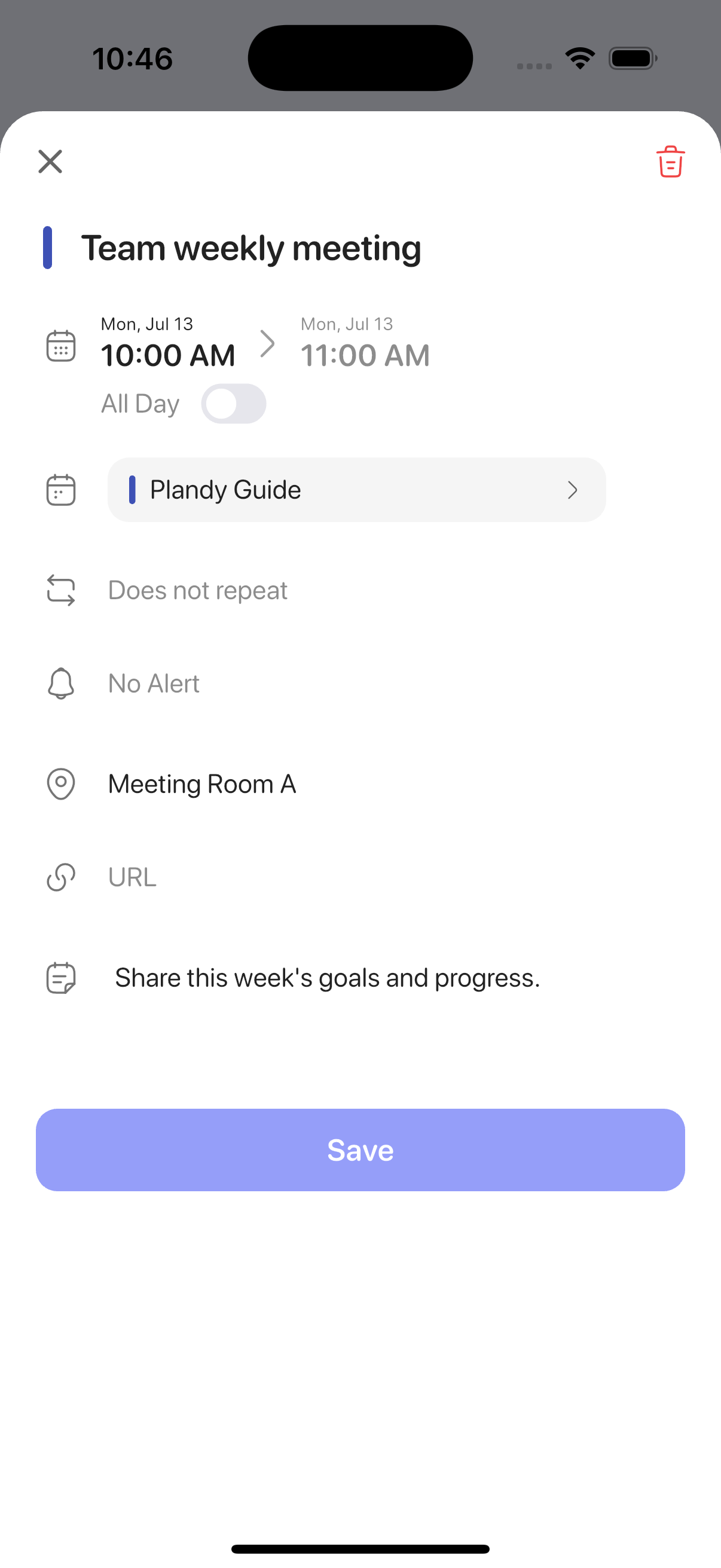
After you create an event, reopen it to set its repeat, alert, and location details.
- On the day, week, or month screen, tap the event you created to open its detail view.
- Under Repeat, choose a cycle such as Daily, Weekly, Monthly, or Yearly. You can also set an end date.
- Under Alert, choose a time such as At time of event, 5 minutes before, or 1 day before.
- Add a place in Location, and related info in URL and Memo.
- To change where it's saved, pick a different calendar under Calendars.
Everything you change is reflected in Apple's own Calendar app too.
Delete an event
Tap the trash icon at the top right of the detail view to delete the event.
To add a reminder (a to-do with a deadline), see the "Reminders" guide. To see Google or Outlook calendars alongside yours, see the "External Calendars" guide.